Windows Setup
Special Offer - Use Vibe Coding API at approximately 0.35x of the original price, exclusively for programming tools!
This guide will help you configure Codex CLI to use Fizzly API on Windows.
Requirements
- Windows 10 or later
- Node.js 18+ installed
- Fizzly API key (Get your key)
Installation Steps
Step 1: Check Environment
Open CMD or PowerShell and check installed global packages:
npm list -g --depth=0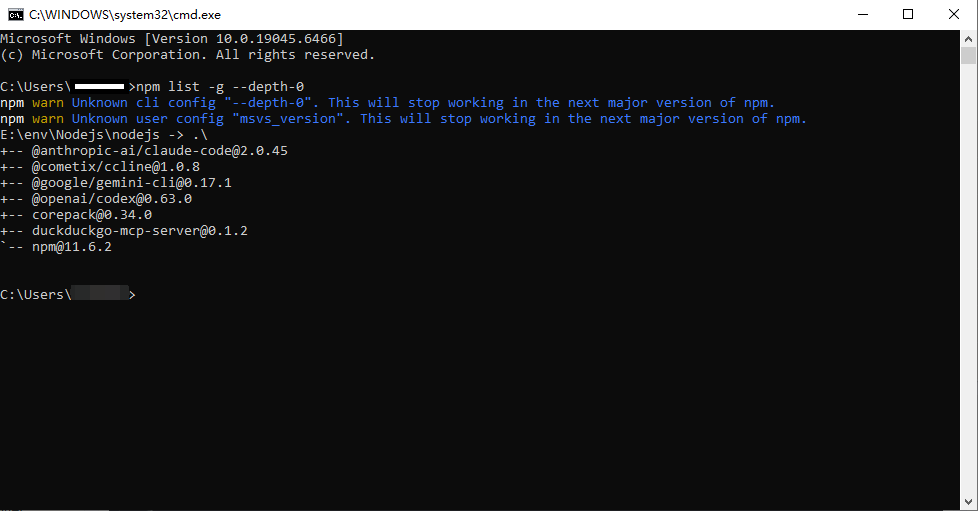
If you don’t have Node.js installed, download the LTS version from nodejs.org.
Step 2: Install Codex CLI
Install Codex globally using npm:
npm i -g @openai/codex@latest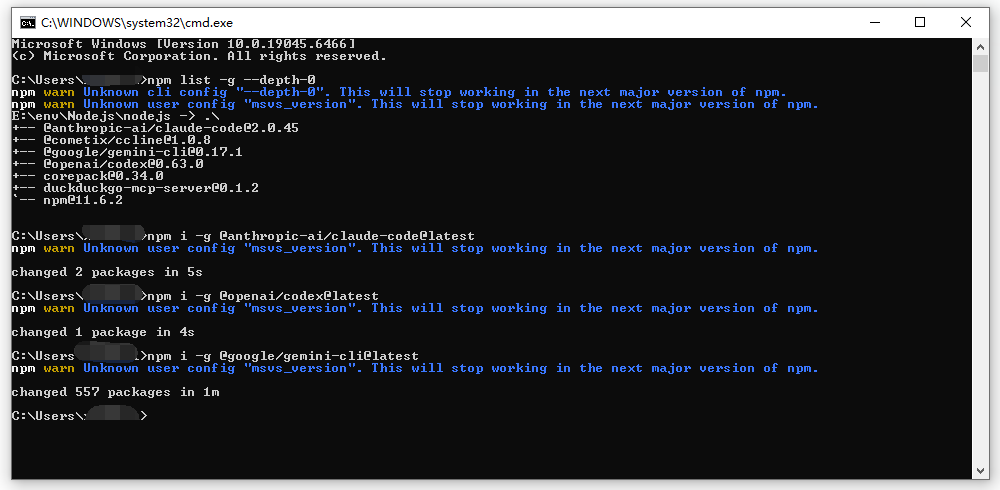
If you encounter network issues, you can use a mirror registry:
npm i -g @openai/codex@latest --registry=https://registry.npmmirror.comStep 3: First Run (Very Important!)
This step is crucial! Running Codex for the first time will automatically create the configuration folder in your user directory.
codexYou’ll see the welcome screen:
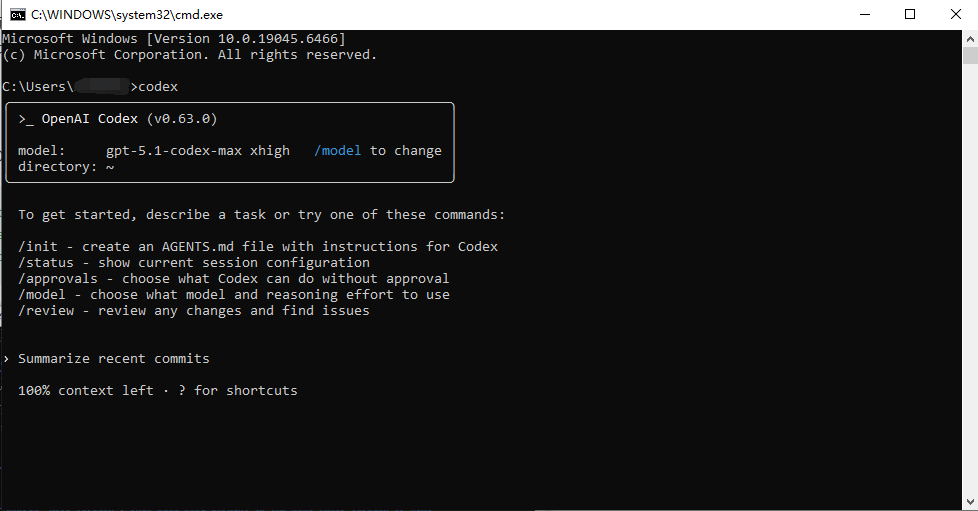
Press Ctrl+C to exit. This will create the configuration folder at %USERPROFILE%\.codex.
Configure API
Step 1: Get API Key
Log in to Fizzly Console and create a new API key.
Important: To enjoy the special discounted pricing for programming tools, make sure to select the vibe coding group when creating your API key. This group’s API is exclusively for use with Claude Code, Codex CLI, Gemini CLI, and similar programming tools.

Step 2: Open Configuration Directory
Press Win + R to open the Run dialog, enter the following and press Enter:
%userprofile%\.codex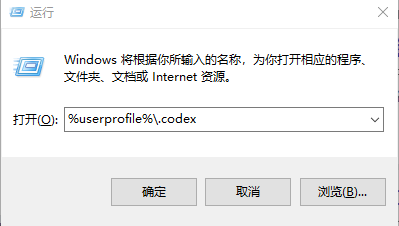
You’ll see the configuration files in the directory:
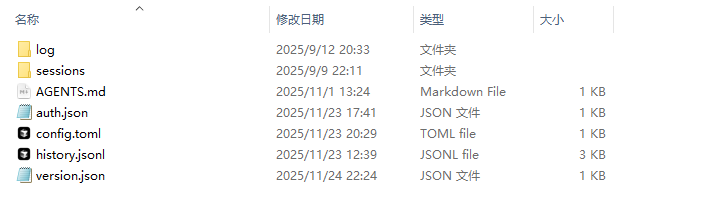
Step 3: Edit Configuration Files
In the .codex directory, you need to edit two configuration files:
config.toml
Create or edit the config.toml file with the following content:
model_provider = "fizzlyapi"
model = "openai/gpt-4o-mini"
model_reasoning_effort = "high"
network_access = "enabled"
disable_response_storage = true
windows_wsl_setup_acknowledged = true
model_verbosity = "high"

[model_providers.fizzlyapi]
name = "fizzlyapi"
base_url = "https://api.fizzlyapi.com/v1"
wire_api = "responses"
requires_openai_auth = true
auth.json
Create or edit the auth.json file with the following content:
{
  "OPENAI_API_KEY": "your-fizzly-api-key"
}
Replace your-fizzly-api-key with your actual API key from the Fizzly Console.
Step 4: Verify Configuration
After saving the files, restart Codex:
codexIf configured successfully, you’ll see Codex running normally:
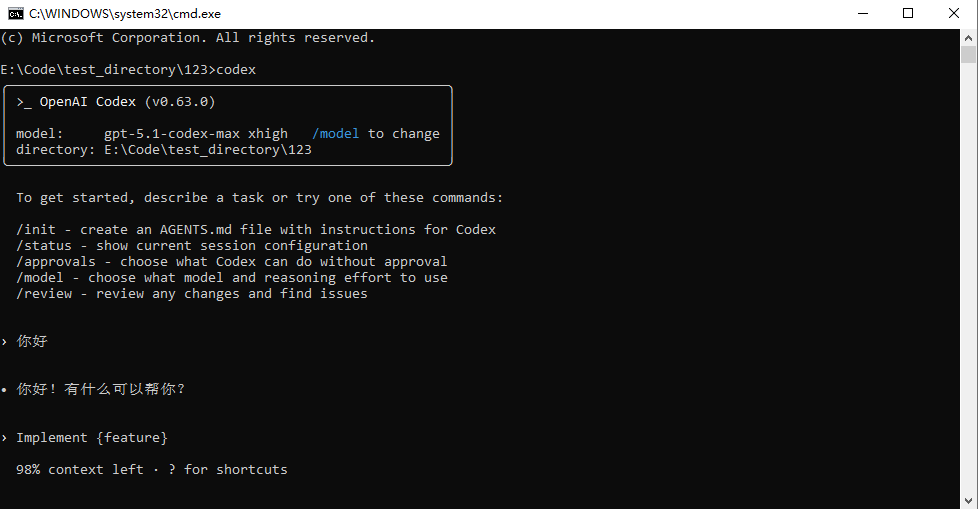
Alternative Configuration Methods
Open PowerShell and run:
# Temporary setting (current session only)
$env:OPENAI_API_KEY = "your-fizzly-api-key"
$env:OPENAI_BASE_URL = "https://api.fizzlyapi.com/v1"
For permanent configuration, add to PowerShell profile:
# Open profile (create if doesn't exist)
if (!(Test-Path -Path $PROFILE)) { New-Item -ItemType File -Path $PROFILE -Force }
notepad $PROFILE

# Add the following content:
$env:OPENAI_API_KEY = "your-fizzly-api-key"
$env:OPENAI_BASE_URL = "https://api.fizzlyapi.com/v1"After editing the profile, restart PowerShell for changes to take effect.
Supported Models
Supports 200+ AI models. See Codex CLI Models.
Basic Usage
# Start interactive mode
codex

# Start in current project directory
cd your-project
codex

# Run single command
codex "Write a Python quicksort function"

# Use specific model
codex --model gpt-4o

# Show help
codex --help
Troubleshooting
1. “codex” command not found
Cause: Codex CLI is not installed or not in PATH.
Solution:
# Reinstall Codex
npm install -g @openai/codex

# Check npm global install path
npm config get prefix

# Verify installation
npm list -g --depth=0 | findstr codex
2. “OPENAI_API_KEY not set” error
Cause: Environment variable or configuration file not properly set.
Solution:
First check the configuration file:
# View configuration file content
type %USERPROFILE%\.codex\auth.json
If the file doesn’t exist or is incorrect, follow the “Configure API” steps above.
3. Connection timeout
Cause: Network issues or firewall blocking.
Solution:
- Check your network connection
- Verify API URL is correct:
https://api.fizzlyapi.com/v1 - Check Windows Firewall settings
- If using enterprise network, you may need to configure proxy
4. Authentication failed (401)
Cause: Invalid or expired API key.
Solution:
- Verify your API key in Fizzly Console
- Ensure the key is not deleted or disabled
- Re-copy and paste the key (avoid extra spaces)
5. Insufficient balance (403)
Cause: Account balance depleted.
Solution:
- Check balance in Fizzly Console
- Top up your account in Billing → Recharge
- Retry after balance is updated
6. PowerShell execution policy restriction
Cause: Windows restricts script execution by default.
Solution:
# Run PowerShell as Administrator and execute:
Set-ExecutionPolicy -ExecutionPolicy RemoteSigned -Scope CurrentUser
Need more help? Check the FAQ page.
Next Steps
- macOS Setup - Configure Codex CLI on macOS
- Linux Setup - Configure Codex CLI on Linux
- FAQ - Frequently Asked Questions